Quick user guide
TPM
Herb prescriptions, nutrition prescriptions, prescription management, labels and stock.
This guide explains the main TPM prescription workflow and the controls shown on each screen. It is based on the working notes and screenshots in the Herb Prescription FAQ.
Navigation
Guide sections
1 Herb Prescription
Build the prescription first, then move to Prescription Management for completion and printing
Where to find it: open TPM, select a practice, then choose Herb Prescription from the main app navigation.
Client Name, DOB, Client ID, Prescriber and Associate are available at the top of the screen. Herb rows show dose, ratio, dispensing amount, batch and expiry information.
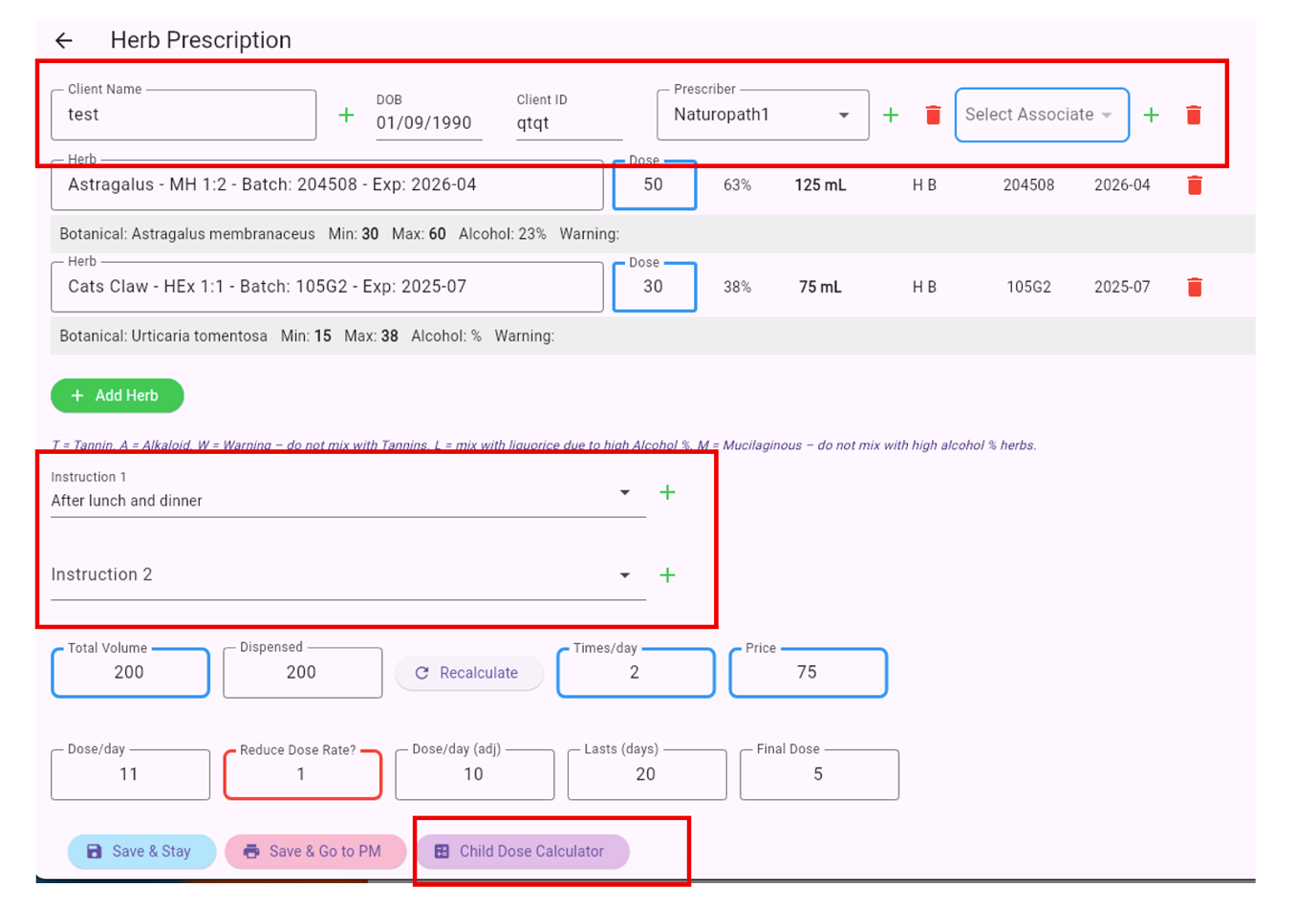
- Add or select the client. Client Name, DOB and Client ID are added via the green + button.
- Select the Prescriber and, if required, an Associate.
- Search for and add the required herbs. Up to 6 herbs can be added.
- Enter the weekly Dose for each herb between the configured Min and Max values.
- Add patient Instructions, Total Volume, Times/day and Price.
- Review the calculated Dose/day, adjusted dose, Lasts (days) and Final Dose.
- Save & Stay, or Save & Go to PM.
Client identification and sensitive information
Best practice would be to have at least two of Client Name, DOB and Client ID to protect against incorrect dispensing. Client data is best managed through the Clients screen. Email and phone, when entered, also appear in Repeat Tracker.
Each practice decides how much sensitive client information to add into TPM. Client data is protected by various security protocols that reflect industry best standards, but this is not a guarantee against unforeseen future risk.
Prescriber, Associate, Instructions and Price
Only the Prescriber name populates the generated label. Associate also appears on the prescription record. Use Associate for a trainee or to record who is dispensing.
Add useful instructions that will appear on the label. Avoid repeating dose information already printed on the label. Examples include "After lunch and dinner". Use the green + button to add a new instruction, then search for it before use.
Set the price according to the practice pricing structure. Many practices use bottle-size categories such as Cat A, Cat B and so on, then adjust the price according to herb weighting. TPM also supports Cost Price and Sell Price in Herb Inventory, but per-mL pricing is not displayed on this prescription screen.
Use Instructions for WHEN or HOW to take the prescription, rather than repeating the dose and frequency already generated by TPM.
1.2 Herb Calculations and Guardrails
Herb calculations are created with guardrails in place so you understand the results
Where to find it: Herb Prescription screen, in the herb rows and calculation fields below the client and instruction area.
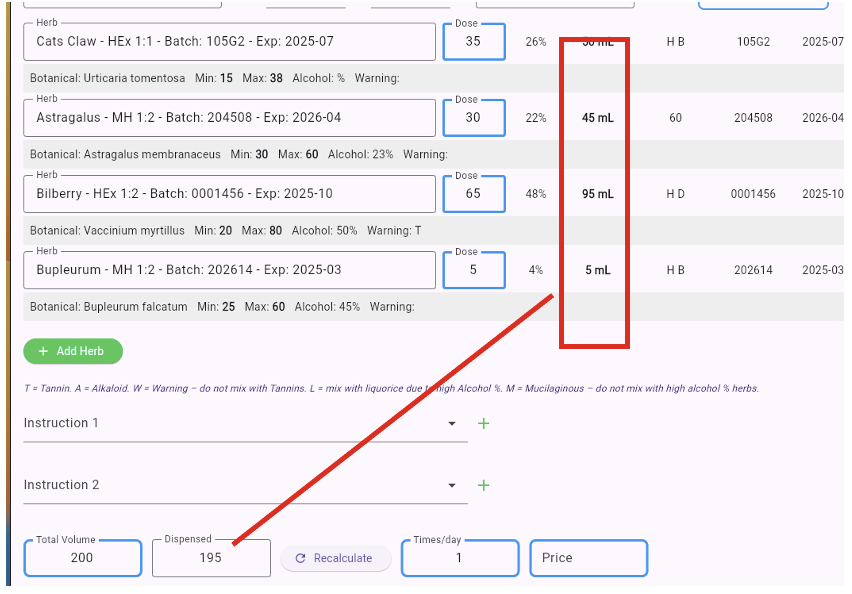
Rounding is used to force dispensed values to the nearest 5 mL so the user is not asked to dispense impractical amounts such as 71.5 mL. Working to 5 mL values is achievable.
Sometimes this rounding rule also results in an amount different in the Dispensed value to the Total Volume entered. It may show +/- 5 mL variation, for instance 205 mL, which will still fit into a 200 mL bottle. If you want to shift that to some more comfortable value, such as 200 mL, play with your min/max values a little.
Always check that Total Volume and Dispensed are following each other, other than the rounding described above. Recalculate will refresh any wild value showing.
Only blue fields are editable.
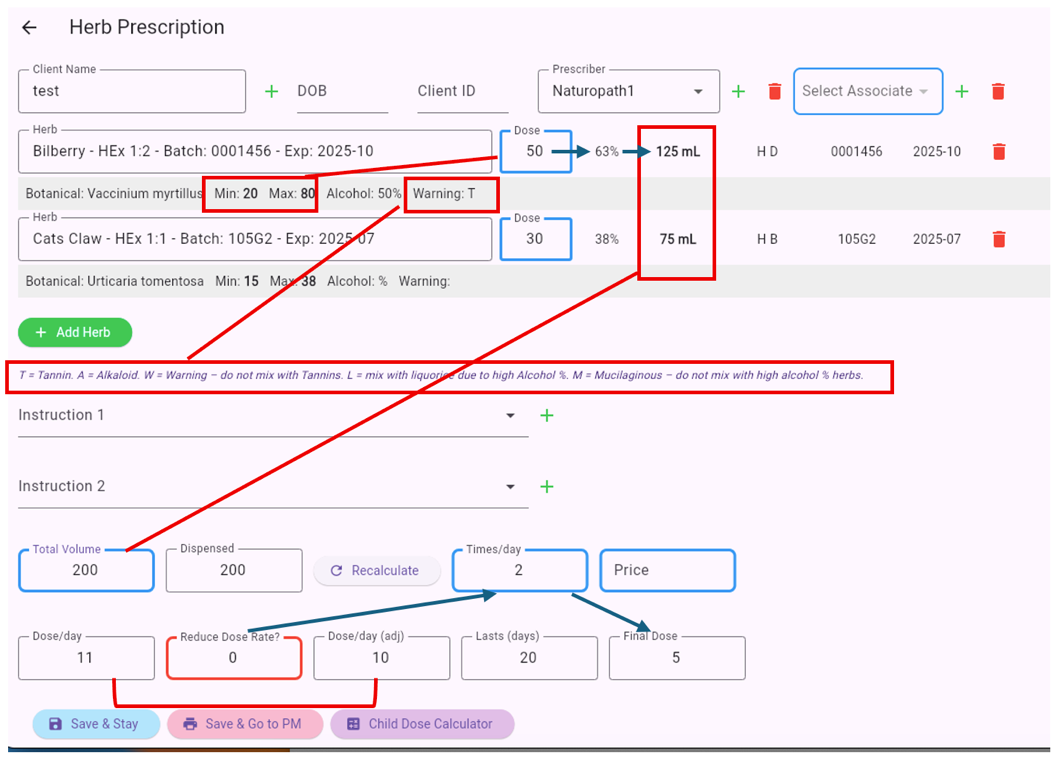
- User searches for a herb. Add up to 6 herbs, as desired.
- User adds a herb Dose between weekly min/max and enters their dose target.
- Total Volume is added and the ratio of herb based on weekly dose is calculated as a percentage of total and shown as the dispensing amount in mL.
- Warning is derived from Med Herb Data. Not all herbs will have a warning.
- Alcohol % is derived from Med Herb Data. If missing, it can be fixed via Med Herb Data screen, not in this screen.
- Dose/day is calculated based on aggregated weekly amounts. Based on Times/day, Final Dose can be adjusted down only via Reduce Dose Rate. It should normally be 0.
- Dose/day and Dose/day (adj) show rounded whole-number values. If you need a final fraction, edit it in Prescription Management before printing.
- Lasts (days) are based on Total Volume and Final Dose.
- Dispensed can show +/- 5 mL rounded up/down when multiple herbs are at play, especially if a low dose amount is entered.
1.3 Child Dose Calculator
Start with the adult mix
Where to find it: Herb Prescription screen, then select Child Dose Calculator.
First set up the adult dose mix and note the Final Dose shown on the Herb Prescription screen.
- Select Child Dose Calculator.
- Choose from the displayed rules: Ausberger's Rule, Clark's Rule, Young's Rule, Fried's Rule or Salisbury Rule.
- Enter the Adult Dose in the top field and complete the other fields required by the rule you choose.
- Press Calculate.
- Record or memorise the Child Dose. It is not saved when you leave this screen.
- Return to the Prescription screen and select Save & Go to PM.
- Edit the prescription in Prescription Management to add the Child Dose value.
- If required, change Lasts For (days) so Repeat Tracker and the prescription label use the intended duration.
The calculated child dose is not automatically saved back into the prescription. It must be entered in Prescription Management.
2 Prescription Management
Search, preview, edit, repeat, copy, complete, revert or delete prescriptions
Where to find it: open TPM, select a practice, then choose Prescription Manager from the main app navigation.
Search by Client Name, Batch number or Description. This makes finding prescriptions that need a repeat prescription simple.
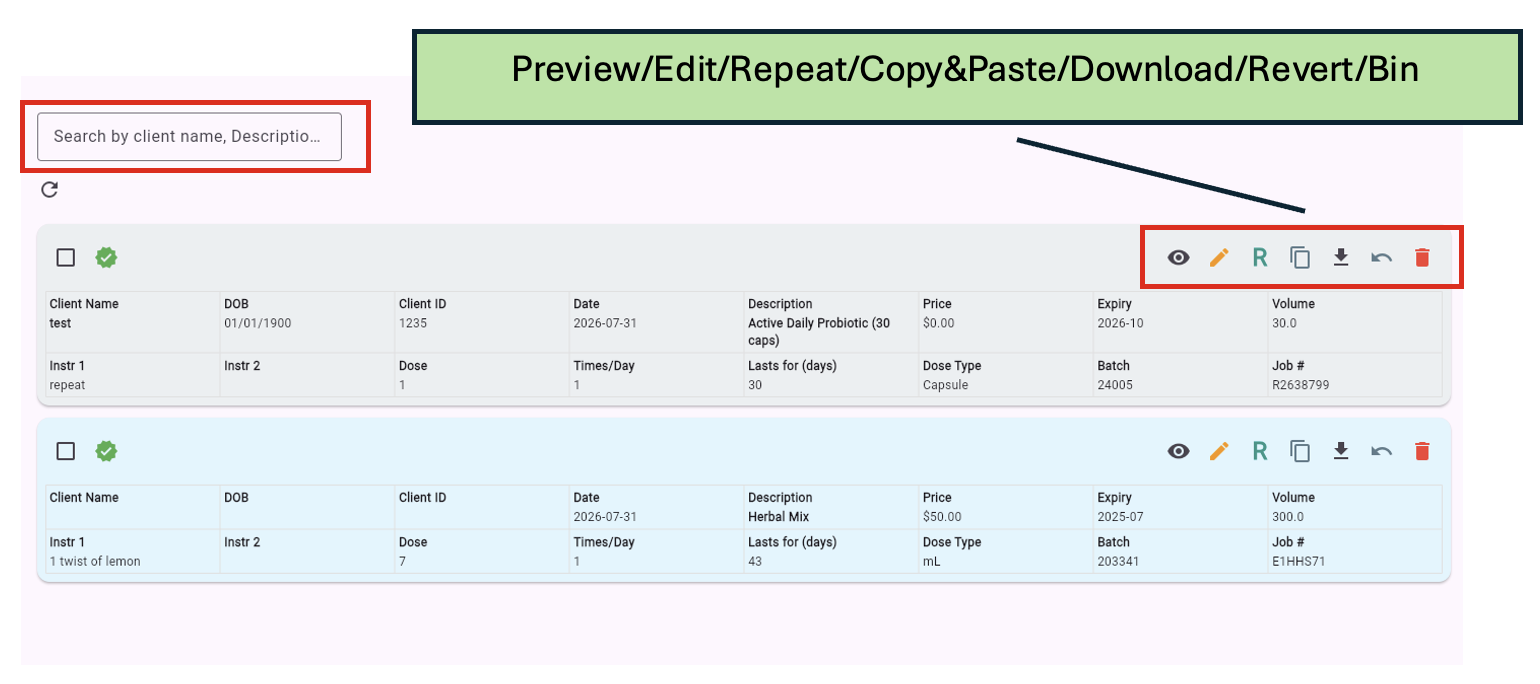
| Action | What it does |
|---|---|
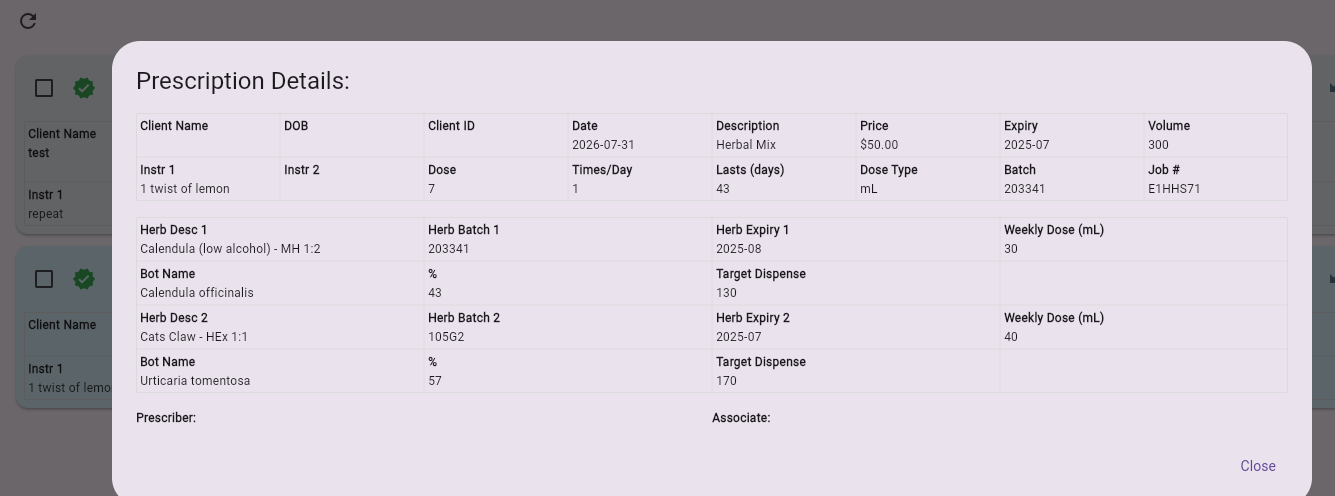
| Preview | View a Herb or Nutrition prescription before downloading for printing. |
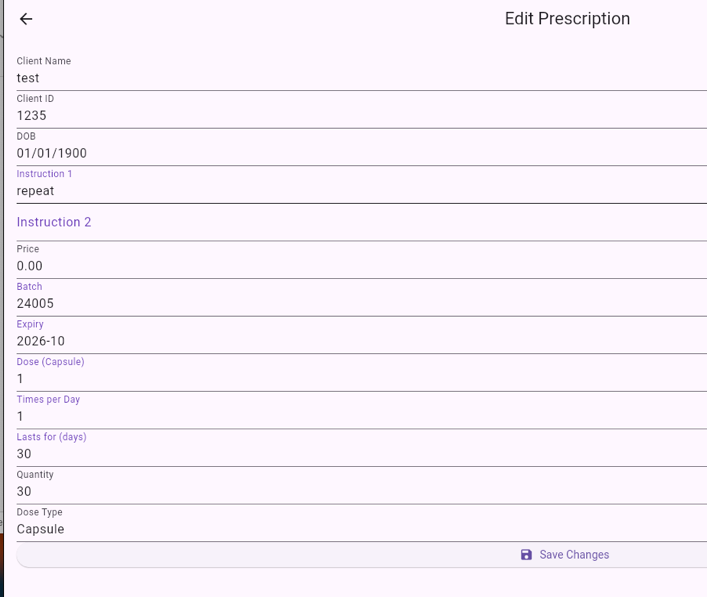
| Edit | Edit most values, excluding Quantity and Dose Type. Herbal mix values cannot be edited in Prescription Manager; if the mix is wrong, delete it and rebuild it in Herb Prescription. |
| Repeat | Create an exact copy of the prescription. The Job # is appended with RXXXXX. Update Batch/Expiry and any other minor changes before completion. |
| Copy/Paste | Copy the prescription to the clipboard so it can be pasted into the patient record. |
| Download | Complete the prescription, show the green tick, and send the output to the printer or label-file location. If Stock Tracking is active, stock levels are adjusted. |
| Revert | Reset a completed prescription back to Draft so edits can be made and Download run again. Stock levels are updated during this process. |
| Delete | Delete the prescription. This action cannot be recovered. |
Multiple Revert operations on the same prescription will not track stock updates; manually correct stock in the relevant Inventory screen if this occurs.
3 Nutrition Prescription
The workflow is similar to Herb Prescription, but only one nutrition item is added at a time
Where to find it: open TPM, select a practice, then choose Nutrition Prescription from the main app navigation.
Only 1 Nutrition item is added per prescription entry. Use Save & Stay to add another item. Blue fields are for user data entry.
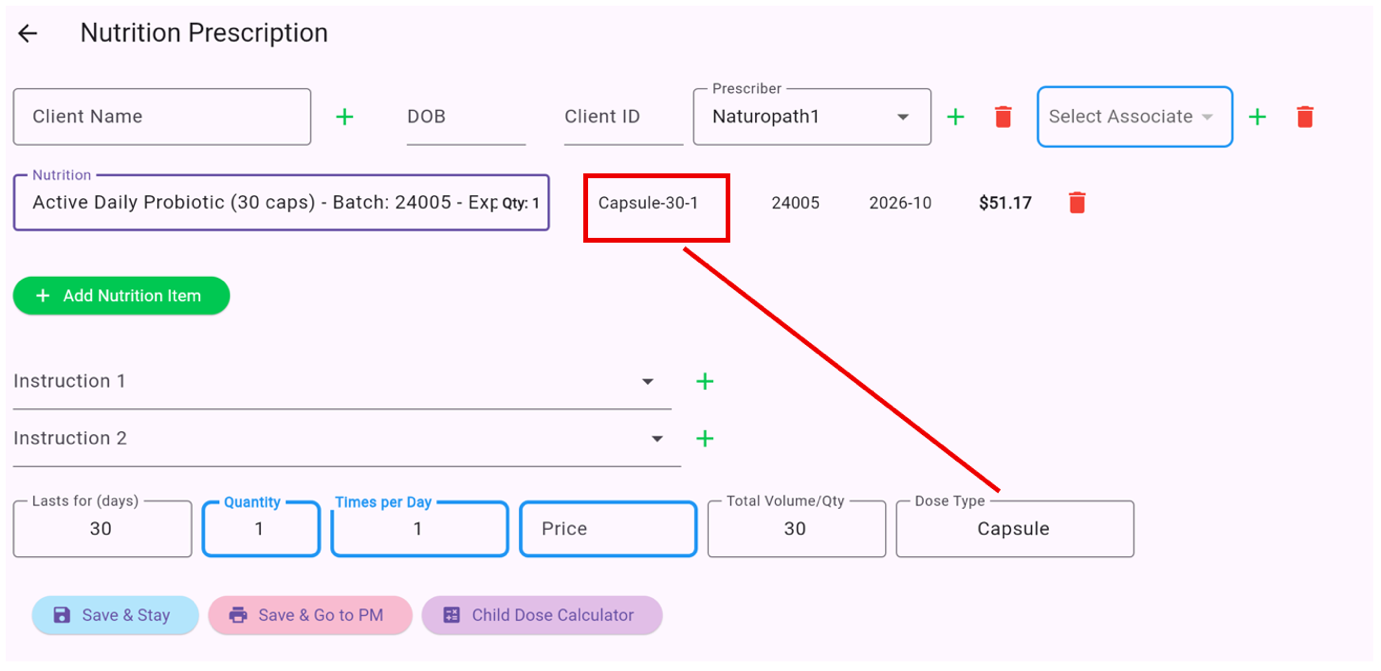
Client Name, DOB and Client ID use the same green + workflow as Herb Prescription. Prescriber and Associate work in the same way as on Herb Prescription.
Price is displayed in the upper part of the screen but must be manually entered to flow to the label. This allows discounting when required.
Total Volume/Qty records the number of capsules or tablets, volume of powder, or other bottle quantity. Dose Type is retrieved from Nutrition Inventory. Correct missing or incorrect values there.
If the practice wants absolute control of the RRP displayed rather than a calculated mark-up, the Nutrition Inventory global values can be set to 0 and Cost Price can be set equal to Sell Price.
Nutrition nomenclature and duration
The product nomenclature carries the pack quantity and the unit size used for dose calculation.
| Example | Meaning | Unit of dose |
|---|---|---|
| Capsule-30-1 | 30 capsules | 1 capsule |
| Squirt-50-0.5 | 50 mL spray | 0.5 mL per squirt |
| Scoop-240-5.6 | 240 g powder | 5.6 g per scoop |
| Metric Teaspoon-500-5 | 500 mL oral liquid | 5 mL per teaspoon |
| Drop-50-0.05 | 50 mL liquid | 0.05 mL per drop |
| Example | Quantity | Times per Day | Lasts For Days |
|---|---|---|---|
| Drop-50-0.05 | 5 | 2 | 100 |
| Scoop-240-5.6 | 1 | 1 | 42 |
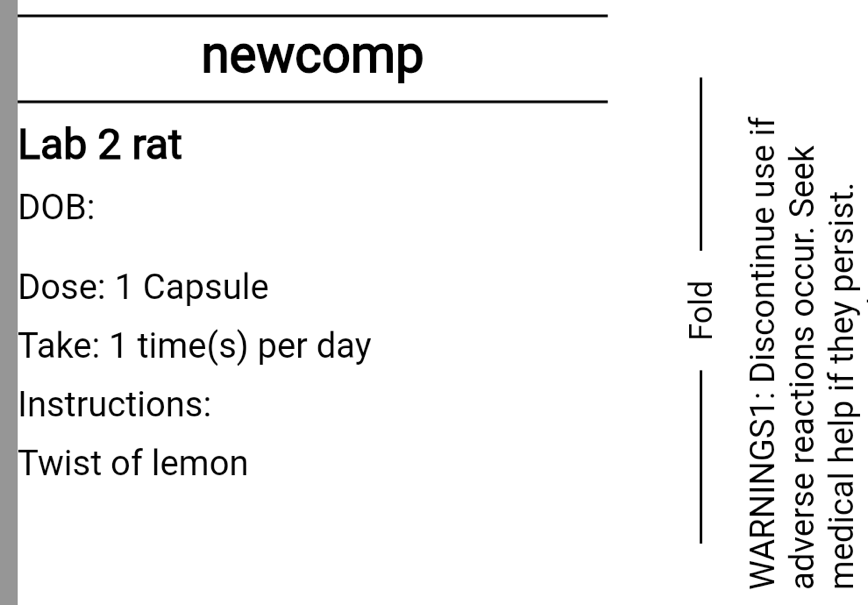
Instructions should not repeat information already printed as Dose and Take. Instructions should describe WHEN or HOW, for example: Before Lunch, before Dinner; Take with 100 mL water or juice; Oral application only, rub on affected area.
Fractions cannot be added as a Quantity in the Nutrition screen. Where a fractional dose is required, edit the prescription in Prescription Management and remember to update Lasts for (days).
4 Herb Reference Data
Preloaded data can be modified by the practice and is used by the prescription workflow
Where to find it: open TPM, select a practice, then choose Herb Reference Data or Med Herb Data from the app navigation.
The majority of herbs are preloaded with Botanical Names, Common Names and other reference information. It is the responsibility of the practice to check that values such as Min and Max are correct.
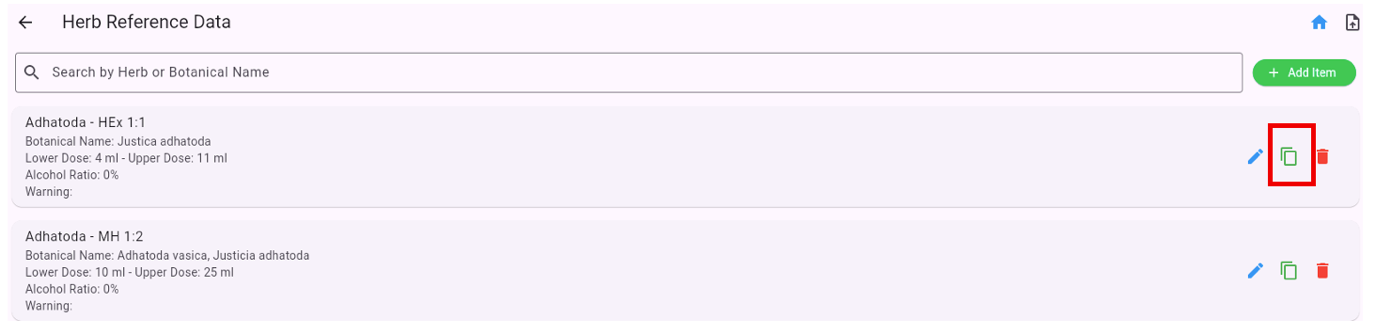
Use clear product nomenclature so the dispenser can distinguish suppliers and ratios. Example: "Adhatoda - HEx 1:1" can distinguish one supplier and ratio from "Adhatoda - MH 1:2".
When adding or editing a product, enter Alcohol as a plain number such as 45, without the % sign.
Deleted items cannot be restored. Items not used by the practice do not need to be deleted. They will not appear in Herb Prescription unless they have been added to Herbal Inventory.
For Herb Reference Data to be picked up when setting up prescriptions, use the exact text when creating the item in Herbal Inventory. Copy the herb name to the clipboard, then paste it into the Inventory Description field.
5 Management and Label Settings
Configure stock tracking, export format, label style and custom label text
Where to find it: use the app settings area, then open Global Settings or Management and Label Settings.
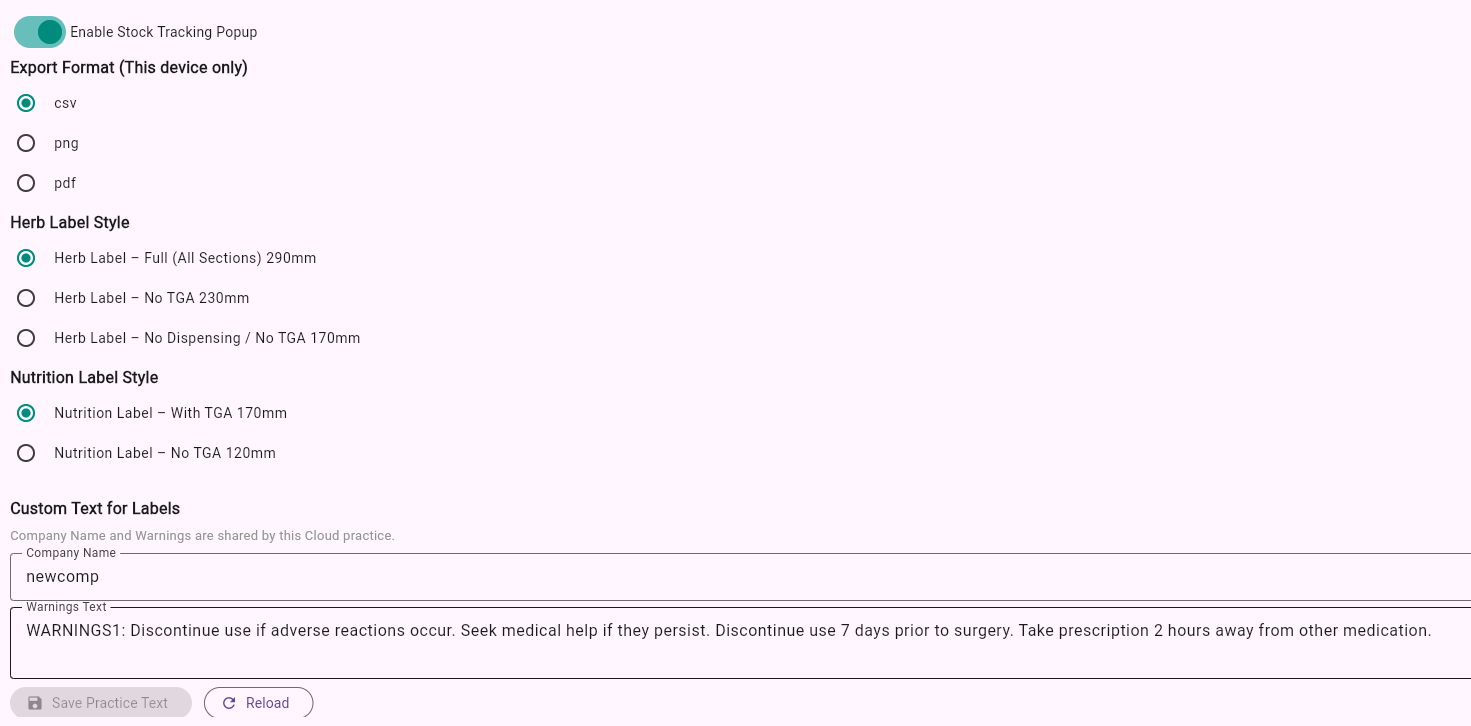
Enable Stock Tracking Popup only if the practice wants TPM to track stock levels.
CSV provides spreadsheet-style field output for mapping into compatible software. PNG and PDF provide image output that can be printed.
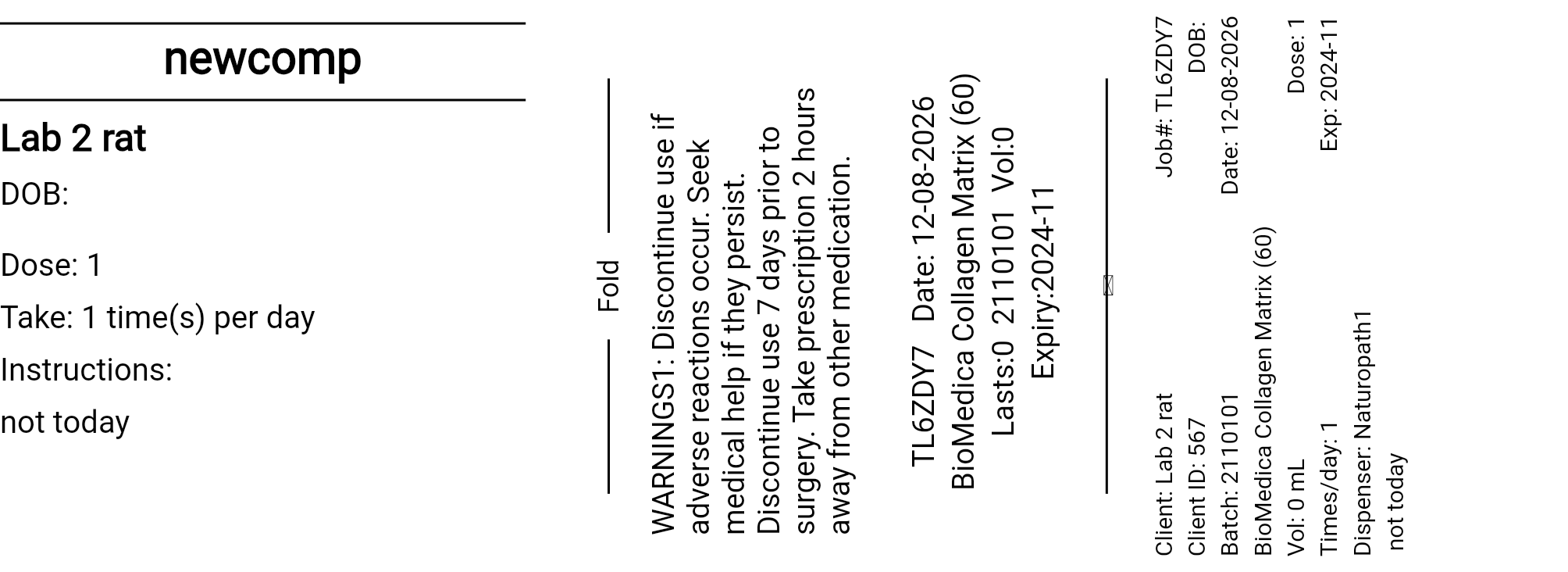
Herb Label Style provides three options: Client Info/Dispensing/TGA hard copy; Client Info/Dispensing; Client Info. Nutrition Label Style provides two options: Client Info/TGA hard copy; Client Info.
The label layouts have been set up for a 63 mm continuous print label using a Brother QL700/QL810W printer. Other software or printer options may also work but have not been tested.
Company Name adds the practice name. Warning Text allows the default warning to be changed. Keep both entries short enough to avoid crowding the label output, then save the changes.
6 Output
Prescription output is controlled by the Prescription Manager and label settings
Where to find it: use Prescription Manager to Preview or Download prescriptions, and use Management and Label Settings to choose export format and label style.
Preview lets the user view a Herb or Nutrition prescription before downloading for printing. Download completes the prescription and sends the output to the printer or label-file location.
CSV provides spreadsheet-style field output for mapping into compatible software. PNG and PDF provide image output that can be printed.
7 Stock and Inventory
Herbs use stock status, while nutrition uses quantity and category values
Where to find it: use Herb Inventory for herb stock status and Nutrition Inventory for nutrition quantity, category/type, volume and dose/unit size.
Herb Inventory uses a stock status such as OK, Low or Out. Herb inventory only has Category, so Unit and Pack should not be added to herb uploads.
Nutrition Inventory uses Quantity on Hand for stock quantity. The Nutrition Category is built from Category/type, Volume and Dose/unit size, then used by the Nutrition Prescription screen for dose and duration calculations.
| Inventory field | Example | How TPM uses it |
|---|---|---|
| Category/type | Scoop | The dose form or wording shown as the first part of the category. |
| Volume | 240 | The pack quantity, such as 240 g powder or 50 mL liquid. |
| Dose/unit size | 5.6 | The unit amount used for calculation, such as 5.6 g per scoop. |
| Combined Category | Scoop-240-5.6 | The stored category format used by Nutrition Prescription. |
| Quantity on Hand | 12 | The current stock quantity for that nutrition inventory item. |
8 Reports
Review current stock, recent movement and export report results
Where to find it: open TPM, select a practice, then choose Stock Report or Reports from the main app navigation.
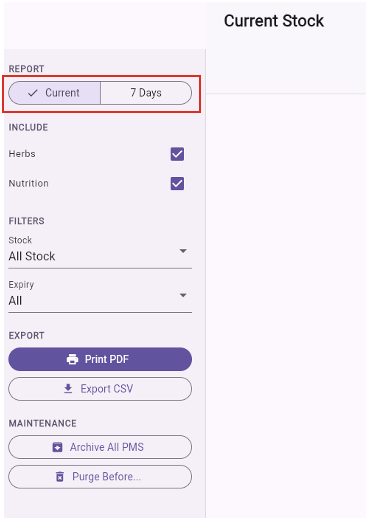
Current report filters allow the user to review current stock levels and expiry dates. 7 Days report shows stock movement over the last 7 days for audit purposes.
Export will print a PDF or generate a CSV file for the filtered items currently in view.
9 Maintenance
Archive and purge completed PMS records when older prescriptions should no longer show as active
Where to find it: use the Archive All PMS and Purge Prescription Items Before controls on the Stock Report or Reports screen.
Archive All PMS creates a CSV record of prescriptions not previously archived. Save the archive somewhere it can be retrieved for audits or record keeping.
Purge Before is used after Archive has been completed. Purge Before removes prescriptions before a selected date so older prescriptions no longer have to remain visible in TPM.
A practice may choose to purge prescriptions older than around two years. Archive should be completed and safely retained first.
Support
Get help when TPM does not behave as expected
Where to find it: use the Support links on the public site, or email support from the contact details supplied by your practice.
If a screen does not refresh, or a calculated value looks wrong, use the relevant screen controls first, such as Recalculate on the Herb Prescription screen. If the issue remains, record what was being entered and contact support.